


Android RelativeLayout Example
Over the course of this tutorial, we will take a look into Android RelativeLayout and its properties. RelativeLayout is one among the most used layout after LinearLayout. It allows its child views to position relative to each other or relative to the container or another container. For example, if we have to build a complex layout as shown in the image below, this can be achieved with ease by using RelativeLayout.
January 27, 2015 · 9 min read · Updated Sep 2025
The TableLayout layout is an extension of LinearLayout. As the name indicates, TableLayout is used to display child View elements in rows and columns.
The concept of TableLayout works something similar to an HTML table. If you can recall the HTML table, TableLayout can be explained as
tag and TableRow is like a element. You can use any view as table cell element.Let us create a TableView layout to display a list of Android version releases. Each row contains three cells that represent version code, version name, and API level. We are trying to achieve the same as the screenshot shown below.
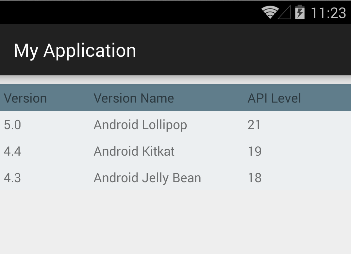
Example
<?xml version="1.0" encoding="utf-8"?>
<TableLayout xmlns:android="http://schemas.android.com/apk/res/android"
    android:layout_width="match_parent"
    android:layout_height="match_parent"
    android:layout_marginTop="10dp">

    <TableRow
        android:background="#607D8B"
        android:padding="5dp">
        <TextView
            android:layout_width="wrap_content"
            android:layout_height="wrap_content"
            android:layout_weight="1"
            android:text="Version" />
        <TextView
            android:layout_width="wrap_content"
            android:layout_height="wrap_content"
            android:layout_weight="1"
            android:text="Version Name" />
        <TextView
            android:layout_width="wrap_content"
            android:layout_height="wrap_content"
            android:layout_weight="1"
            android:text="API Level" />
    </TableRow>

    <TableRow
        android:background="#ECEFF1"
        android:padding="5dp">
        <TextView
            android:layout_width="wrap_content"
            android:layout_height="wrap_content"
            android:layout_weight="1"
            android:text="5.0" />
        <TextView
            android:layout_width="wrap_content"
            android:layout_height="wrap_content"
            android:layout_weight="1"
            android:text="Android Lollipop" />
        <TextView
            android:layout_width="wrap_content"
            android:layout_height="wrap_content"
            android:layout_weight="1"
            android:text="21" />
    </TableRow>

    <TableRow
        android:background="#ECEFF1"
        android:padding="5dp">
        <TextView
            android:layout_width="wrap_content"
            android:layout_height="wrap_content"
            android:layout_weight="1"
            android:text="4.4" />
        <TextView
            android:layout_width="wrap_content"
            android:layout_height="wrap_content"
            android:layout_weight="1"
            android:text="Android Kitkat" />
        <TextView
            android:layout_width="wrap_content"
            android:layout_height="wrap_content"
            android:layout_weight="1"
            android:text="19" />
    </TableRow>
    <TableRow
        android:background="#ECEFF1"
        android:padding="5dp">
        <TextView
            android:layout_width="wrap_content"
            android:layout_height="wrap_content"
            android:layout_weight="1"
            android:text="4.3" />
        <TextView
            android:layout_width="wrap_content"
            android:layout_height="wrap_content"
            android:layout_weight="1"
            android:text="Android Jelly Bean" />
        <TextView
            android:layout_width="wrap_content"
            android:layout_height="wrap_content"
            android:layout_weight="1"
            android:text="18" />
    </TableRow>
</TableLayout>Now that we have declared the TableLayout layout, let is load this layout in the Activity onCreate() method
@Override
protected void onCreate(Bundle savedInstanceState) {
        super.onCreate(savedInstanceState);
        setContentView(R.layout.activity_main);
}The SetContentView(int) method loads the layout file for the Activity, specified by the layout resource Id.